
Project Links
Project Links & Automatic PM Change Notifications
The Project Links feature allows you to connect related projects together. When projects are linked, their Project Managers are automatically notified via email whenever the PM of any linked project changes. This ensures seamless coordination across interconnected projects.
1. Overview
Project linking enables you to:
- Connect related projects - Group projects that share dependencies, resources, or business objectives.
- Maintain visibility - Keep all Project Managers informed when leadership changes occur in linked projects.
- Improve coordination - Ensure that changes in one project's management are immediately communicated to all related stakeholders.
The system automatically handles email notifications, requiring no manual intervention once projects are linked.
2. How to Link Projects
To create connections between projects:
Step 1: Access Project Links
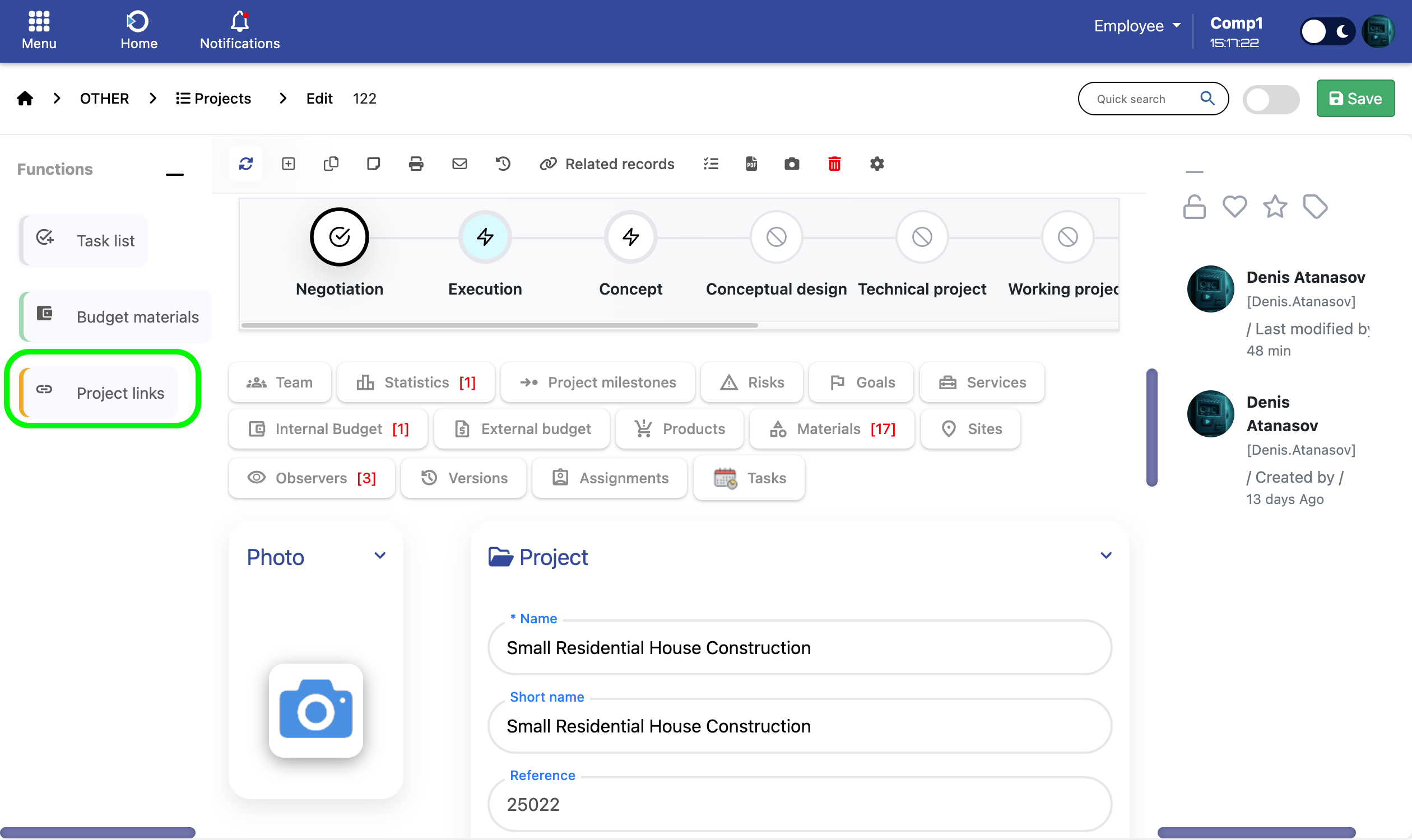
Open any project and locate the Project links button in the left sidebar under the Functions section. This button displays a link chain icon.
Step 2: View Linked Projects
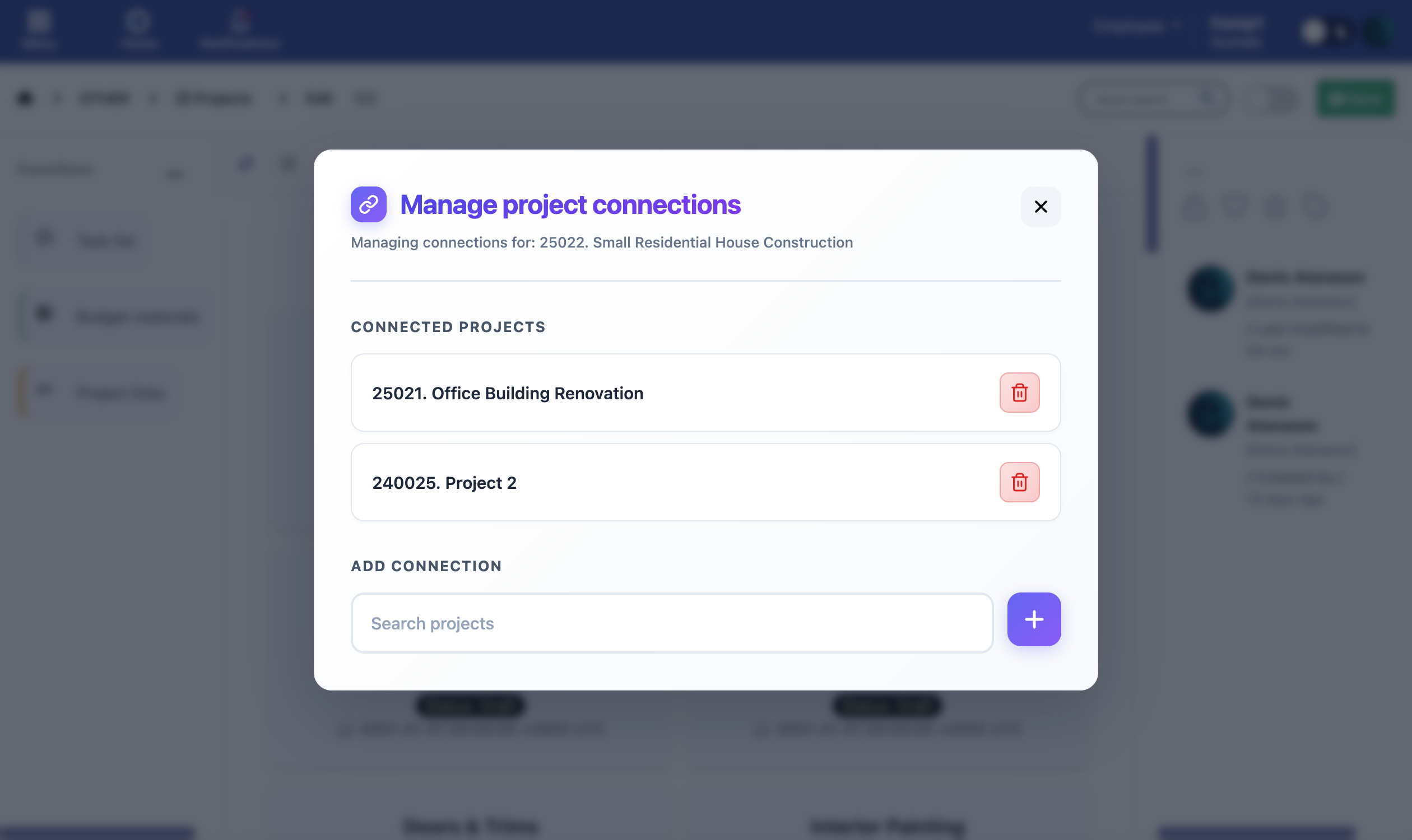
Click the Project links button to open the connection management popup. The popup displays:
- Current project reference and name at the top
- List of all currently linked projects (if any)
- Search field to add new connections
Step 3: Add a New Link
To connect another project:
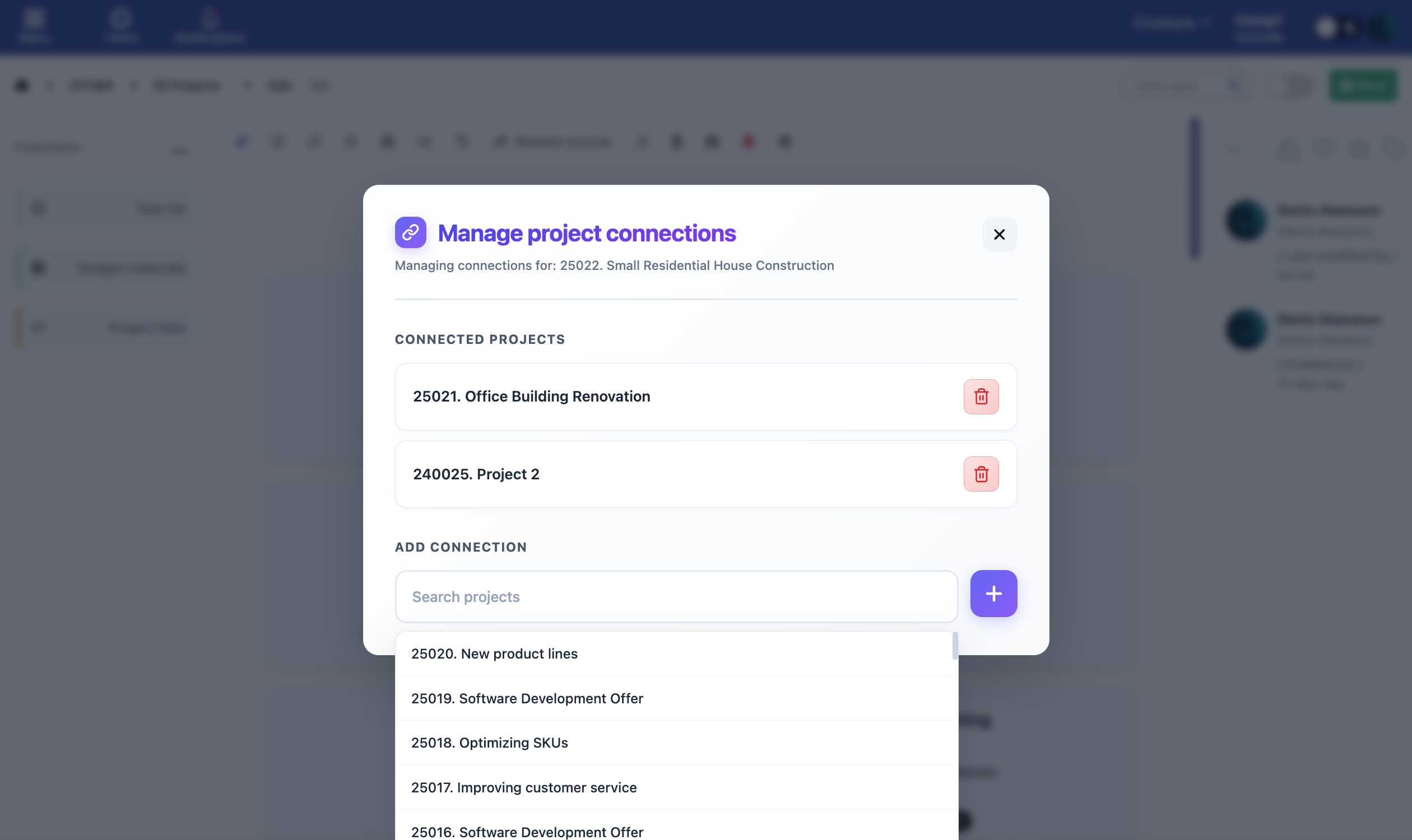
- Type in the Search projects field to find the project you want to link
- Select the desired project from the dropdown list
- Click the + button to add the connection
- A success message confirms the link has been created
Step 4: Remove a Link
To disconnect a project:
- Locate the project in the Connected Projects list
- Click the red trash icon button next to the project
- Confirm the removal when prompted
- The connection is immediately removed
3. Automatic PM Change Notifications
When a Project Manager is changed on any linked project, the system automatically:
- Detects the PM change in real-time
- Identifies all projects linked to the modified project
- Collects the email addresses of all linked Project Managers
- Generates and sends a personalized notification email to each PM
Important: Only Project Managers of linked projects receive these notifications. The notification is triggered automatically - no manual action is required.
4. Email Notification Details
Each notification email contains:
Subject Line
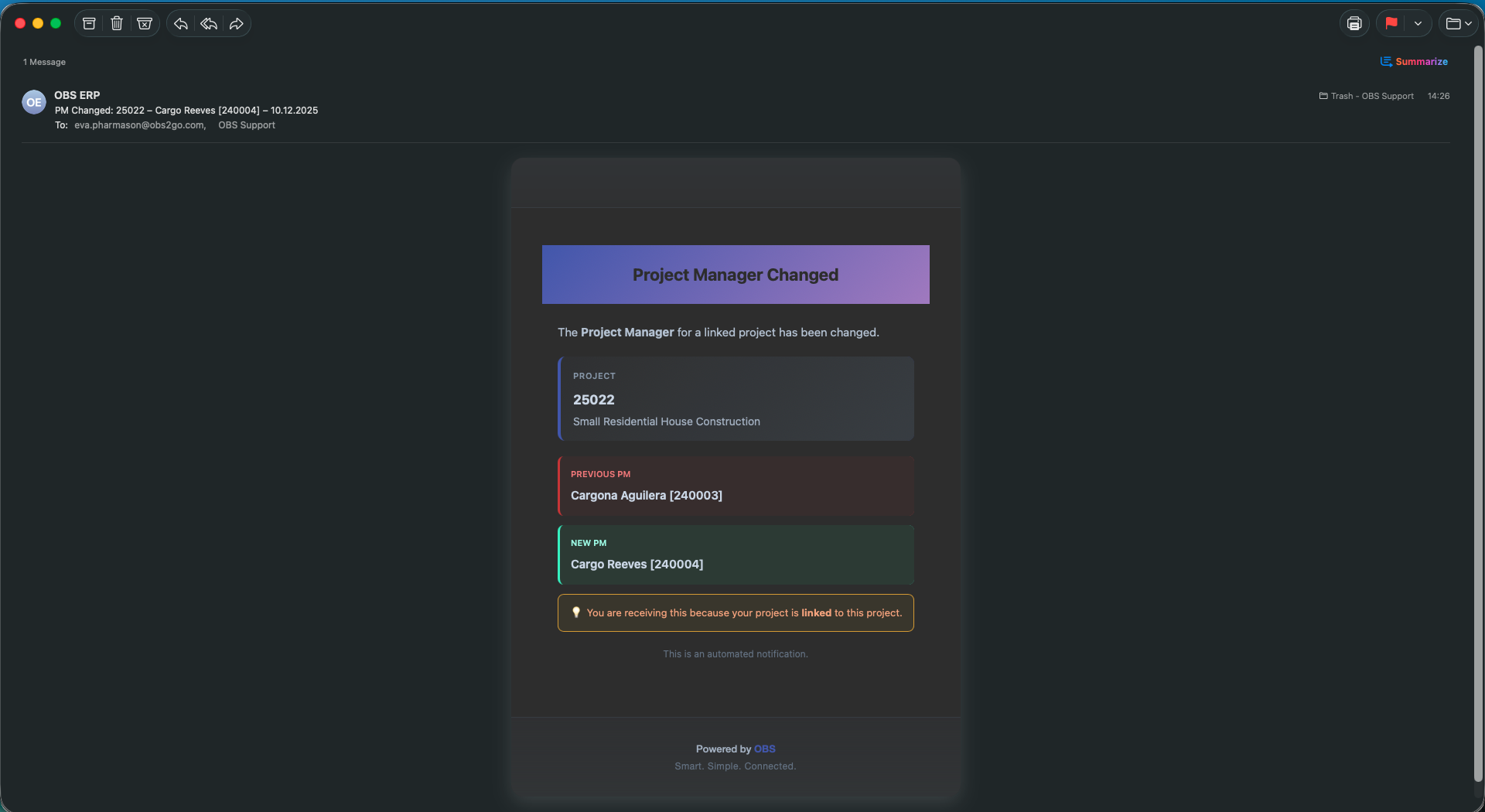
PM Changed: [Project Reference] - [New PM Name] - [Date]
Email Content
The email displays:
- Project Information - Reference number and full project name
- Previous PM - Name of the former Project Manager (displayed in red)
- New PM - Name of the newly assigned Project Manager (displayed in green)
- Reason for notification - Clear explanation that you're receiving this because your project is linked
Need Help? If you have questions about project linking or don't see the Project links button, contact your system administrator to verify your access permissions.